QR Code for Google Reviews: Get More Reviews Instantly
One scan, and your customer is already writing a review — no searching, no app needed.
Most customers who mean to leave a review never do — not because they don't want to, but because finding the right Google listing is one extra step too many. A QR code removes that friction entirely. Point your phone at the code, and the Google review window opens straight away.
How to get your Google review link
- Open Google Maps or search for your business on Google.
- In your Google Business Profile dashboard, go to Home → Get more reviews.
- Copy the short link — it looks like
g.page/r/your-business/review. - Paste that link into the QR generator below.
Create the QR code (free, 30 seconds)
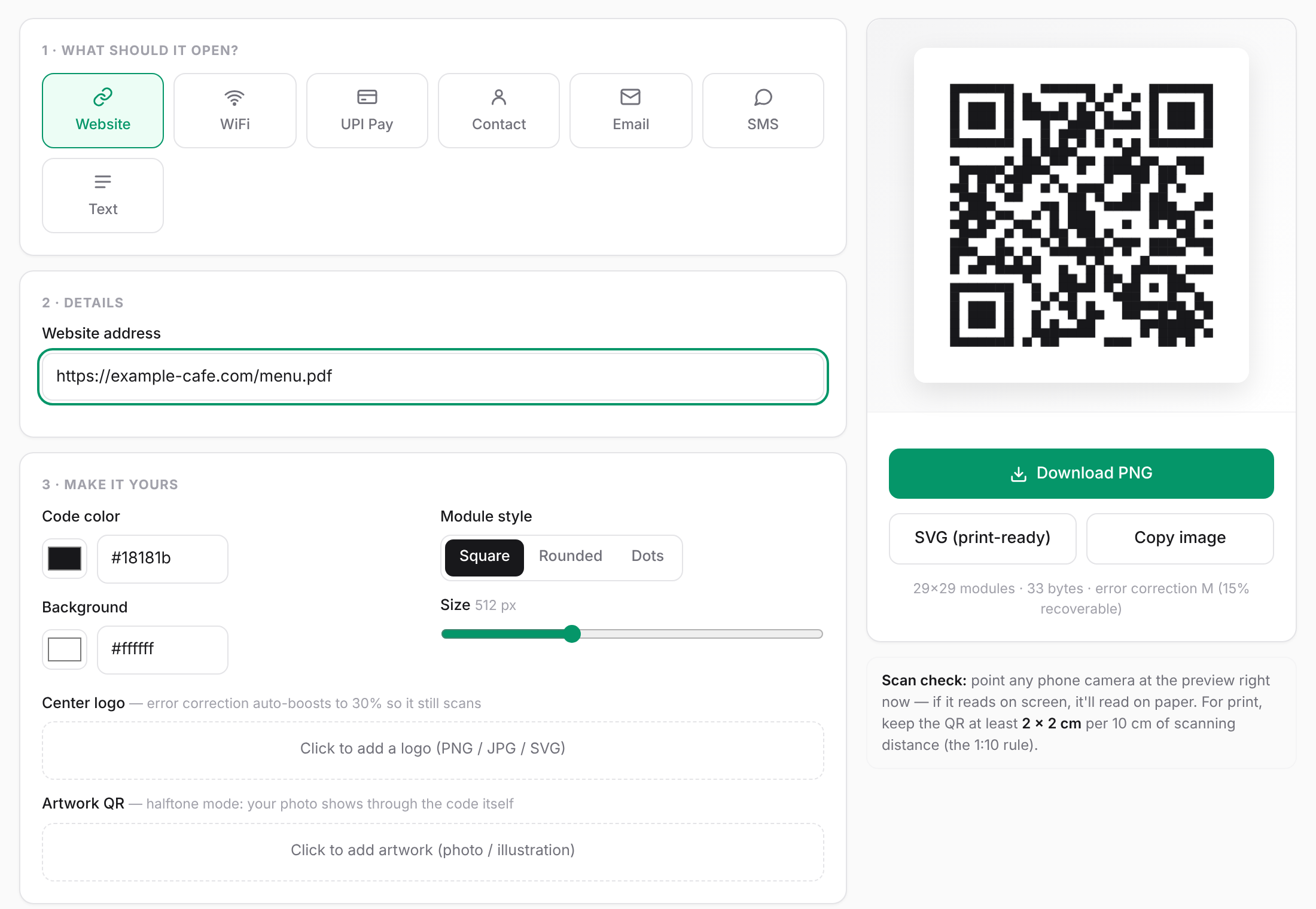
- Go to Making a QR Code and select the Website tab.
- Paste your Google review link into the address field.
- Optionally add your logo or brand colors.
- Download as PNG (for printing) or SVG (for larger formats).
Where to display your Google review QR code
- Receipts and invoices — customers scan it while the experience is fresh
- Table tents and counter cards — at the checkout or while they wait
- Thank-you cards — in packaging for online orders
- Window stickers — visible to people passing by
- Email signatures — add the QR image to your follow-up emails
Does a Google review QR code expire?
No. The QR code is a static code — it encodes your review URL directly with no redirect server. As long as your Google Business Profile stays active, the code works forever. There is no subscription to maintain.
What size should I print it at?
For counter cards and table tents scanned at arm's length (~50 cm), print at least 4–5 cm wide. For receipts held close, 3 cm is enough. Always test-scan before printing in bulk.
Why most customers never leave a review — and how the QR fixes it
Research consistently shows that the number one reason satisfied customers don't leave reviews is friction, not lack of willingness. Someone who enjoyed a meal, a haircut, or a repair job often thinks "I should leave a review" and then forgets before they get home. A QR code at the moment of satisfaction — on the receipt, the counter card, or the door as they leave — captures that intent while the experience is still fresh.
The difference between a QR code that opens the review form directly and one that just opens your Google Maps listing is significant. With a direct review link (the short g.page/r/ URL), the customer sees the star rating input immediately. With a maps listing link, they have to find the "Write a review" button themselves — another step, another drop-off point.
How to get more reviews without being pushy
Placing the QR code is half the work. The other half is the prompt that accompanies it. A few approaches that work:
- The receipt prompt: Print a small line on every receipt: "Enjoyed your visit? Scan to leave us a Google review." Brief, low pressure, right at the transaction moment.
- The table tent: A fold-up card on each table with a QR and a line like "Tell others about your experience." Customers scan while they wait for dessert or the bill.
- The thank-you card: In online order packaging, a small card saying "We'd love your review — scan here." Personal and comes at the unboxing moment when satisfaction is high.
- The exit window cling: A cling inside the door, at eye level, as customers leave. Catches people on their way out when they're leaving satisfied.
Can I customize the QR code with my brand?
Yes. Making a QR Code lets you set custom colors, add a center logo, and download in SVG for large-format print. For a Google review QR, consider adding your business logo in the center — it makes the code immediately recognizable and signals to customers that it's legitimate (not an ad or a scam). Keep the foreground color dark enough to scan reliably, and test-scan after customizing.
Frequently asked questions
Does the QR code work if the customer doesn't have Google Maps installed?
Yes. The g.page/r/ link opens in the browser, which prompts the customer to sign in to Google and write a review. The Maps app doesn't need to be installed.
Can I use this for a business without a physical location?
Yes. Any business with a Google Business Profile can generate a review link, including service-area businesses and online-only businesses. Get your review link from Google Business Profile Manager.
Is there a limit to how many reviews a QR code can collect?
No. A single QR code can be scanned by any number of customers — there is no per-scan limit.