WiFi QR Code Guide: Let Guests Connect With One Scan
No more spelling out your password letter by letter.
A WiFi QR code lets anyone connect to your network by pointing their phone camera at it — no typing, no asking. Phones running iOS 11+ and Android 10+ support this natively in the camera app.
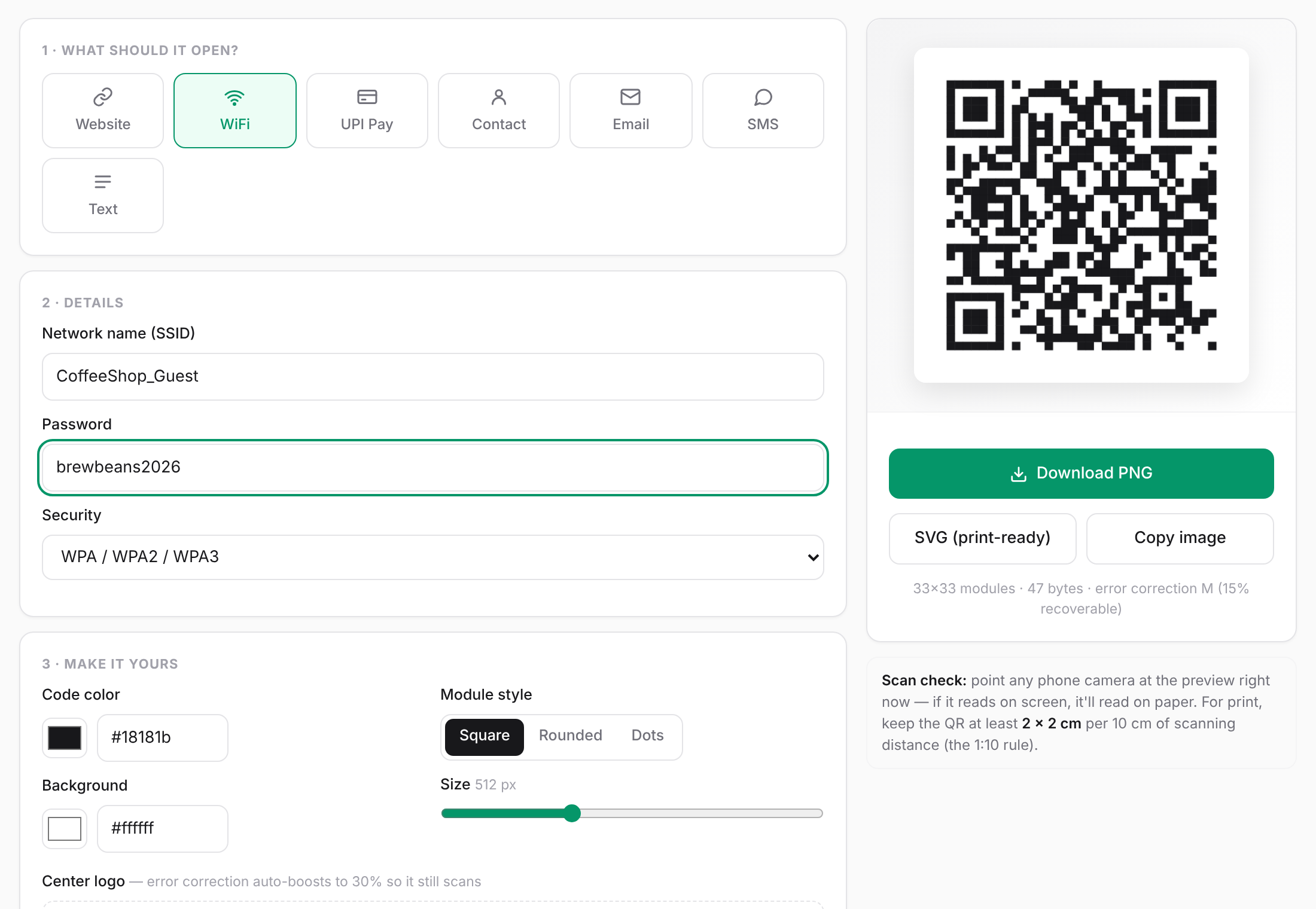
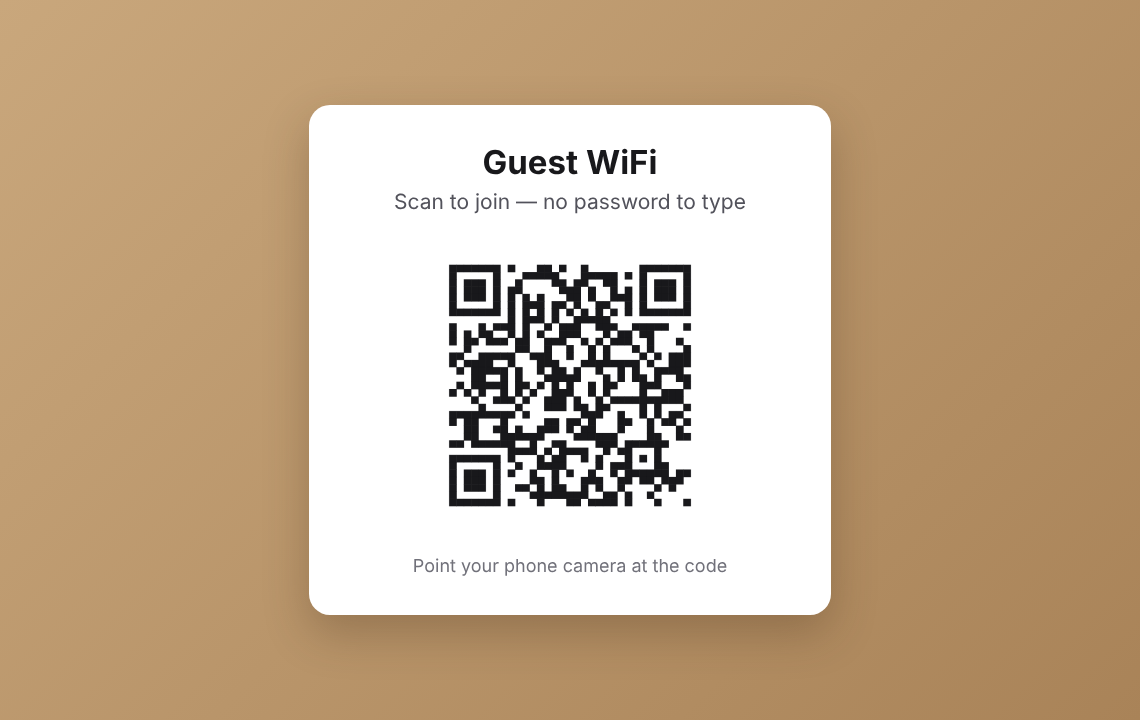
How it works
The code encodes a small standard string: WIFI:T:WPA;S:NetworkName;P:password;; — security type, network name (SSID), and password. The phone reads it and offers to join the network. The password is stored in the code itself, so treat the printed code like the password it contains.
Who uses these
- Cafés & restaurants — table tents and counter cards reduce "what's the WiFi?" interruptions
- Hotels, Airbnbs & guest rooms — frame it next to the router or in the welcome book
- Offices — a guest-network code at reception keeps the staff network private
- Home — stick one on the fridge for visiting family
Tips for a code that always works
- Use your guest network rather than your main one where possible.
- If your SSID or password contains
; , : " \characters, your generator must escape them — Making a QR Code handles this automatically. - If you change the WiFi password, the printed code stops working — you'll need to print a new one (the code stores the password, it doesn't sync).
- Print at least 3×3 cm and test-scan from arm's length before laminating.
What the WiFi QR code format looks like
A WiFi QR code encodes a text string in this exact format: WIFI:T:WPA;S:YourNetworkName;P:YourPassword;;
- T: Security type — WPA (also covers WPA2 and WPA3), WEP (older, insecure), or nopass for open networks.
- S: SSID — your network name, exactly as it appears on devices (case-sensitive).
- P: Password — your WiFi password in plain text. Making a QR Code handles all required escaping automatically.
The double semicolon at the end is required. This format is part of the ZXing (Zebra Crossing) open standard, which is why it works natively on iOS and Android without any third-party app.
Device compatibility
WiFi QR codes work natively on:
- iPhone / iPad: iOS 11+ — open Camera app, point at the code, tap "Join [NetworkName]"
- Android: Android 10+ natively, or through Google Lens on older versions
- Samsung devices: Some Samsung phones on Android 9 also support it via the Camera app
Older devices (pre-iOS 11, pre-Android 10) may need a free QR scanner app. These are still a small minority — 95%+ of active iPhones and Android phones in use today support native WiFi QR scanning.
Common WiFi QR code problems and fixes
- Code won't scan: Printed too small. For arm's-length scanning (~50 cm), the code needs to be at least 3–4 cm wide. See the print size guide.
- Code scans but won't connect: WiFi password changed after printing. Generate a new code with the updated password.
- Hidden networks: The WiFi QR format supports hidden networks through an
H:true;flag, but Making a QR Code does not currently offer a hidden-network option, so codes it creates will not carry that flag. For a hidden network, consider making the SSID visible or use a generator that supports the flag. - Special characters in SSID/password: Characters like
;,"\must be escaped. Making a QR Code handles this automatically — but if you're writing the string manually, prefix each with a backslash. - iPhone shows the network but won't join: Try forgetting the network first (Settings → Wi-Fi → your network → Forget) then scanning again.
Design tips for a WiFi QR code you'll actually use
A WiFi code that doesn't get scanned is a missed opportunity. A few things that help:
- Label it clearly: Add a text label like "Scan to join Guest WiFi" above or below the code — people won't scan an unlabelled QR code they don't recognise.
- Use your brand colors: Making a QR Code lets you set custom foreground and background colors. Keep good contrast (dark on light works best) and avoid light-on-dark patterns.
- Add your logo: A logo in the center helps customers trust the code. The error correction built into QR codes means a small logo doesn't prevent scanning.
- Laminate it: A laminated card is easy to wipe clean between guests and hard to tamper with. Frame it next to the router or on each table.